Units Master Help
Supported Units of Measurement
•
length units: mils, points, picas, inches, links, feet, yards, rods, chains, furlongs, miles, fathoms, nautical miles, millimeters, centimeters, decimeters, meters and kilometers.
•
area units: square mils, square inches, square links, square feet, square yards, squares, square rods, square chains, acres, square miles, townships, square millimeters (mm²), square centimeters (cm²), square decimeters (dm²), square meters (m²), ares, hectares and square kilometers (km²).
Calculate and convert not only length or area units but mix area and length units in your calculataions, e.g. you can divide 100sq.yd by 15ft, add 18sq.ft and 9yd×7.5ft and much more
Entering fractional and decimal values and units
Shortcuts/Hotkeys for Mac and Windows versions
Entering fractional and decimal values and units
Options that make Units Master unique and different from other calculators:
1. Unlike many other calculators and converters, you may enter any combinations of units
For example, you may enter 1yd3ft2in, 2m15cm4mm, 1_3/4yd5ft, etc.
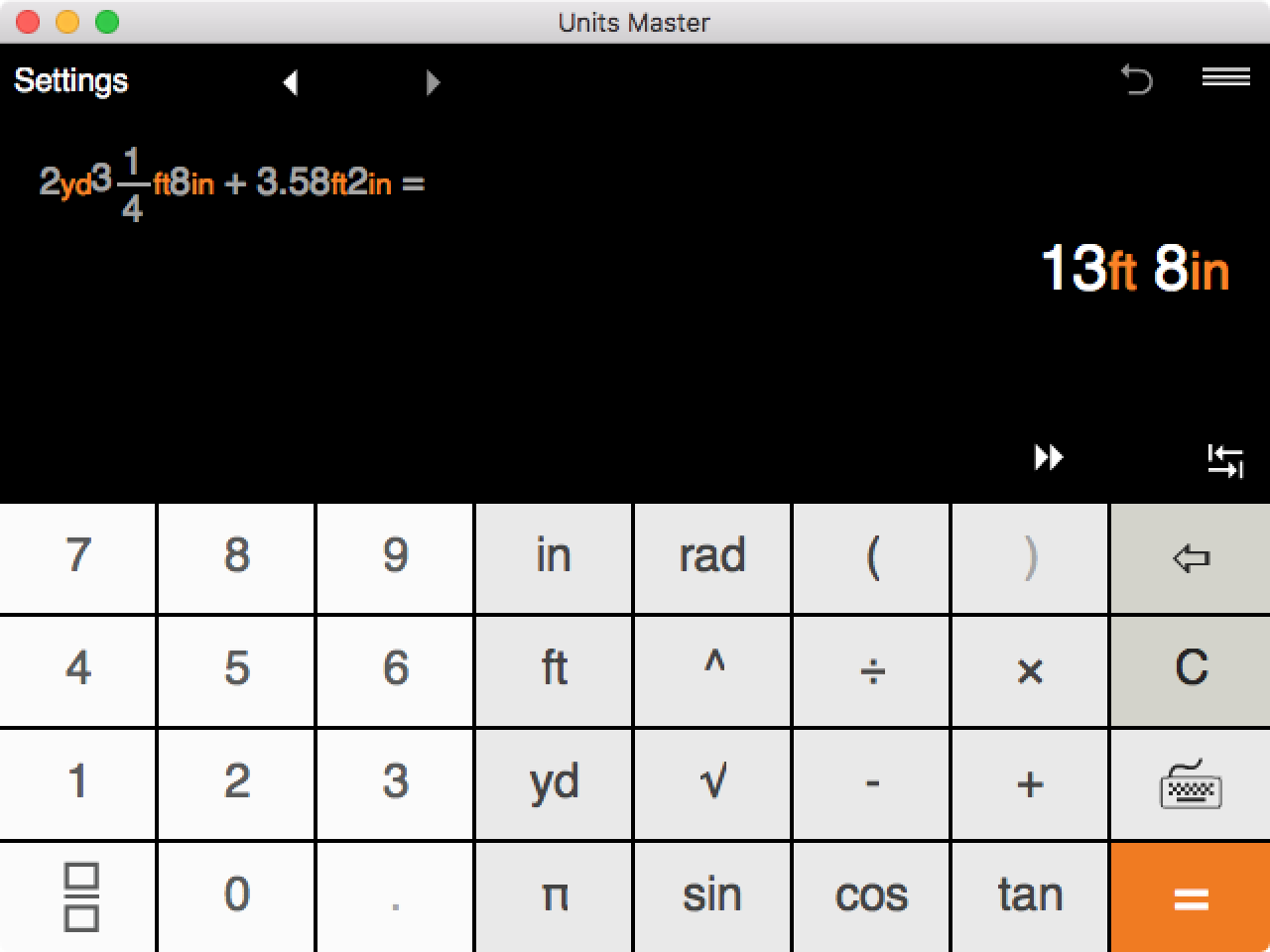
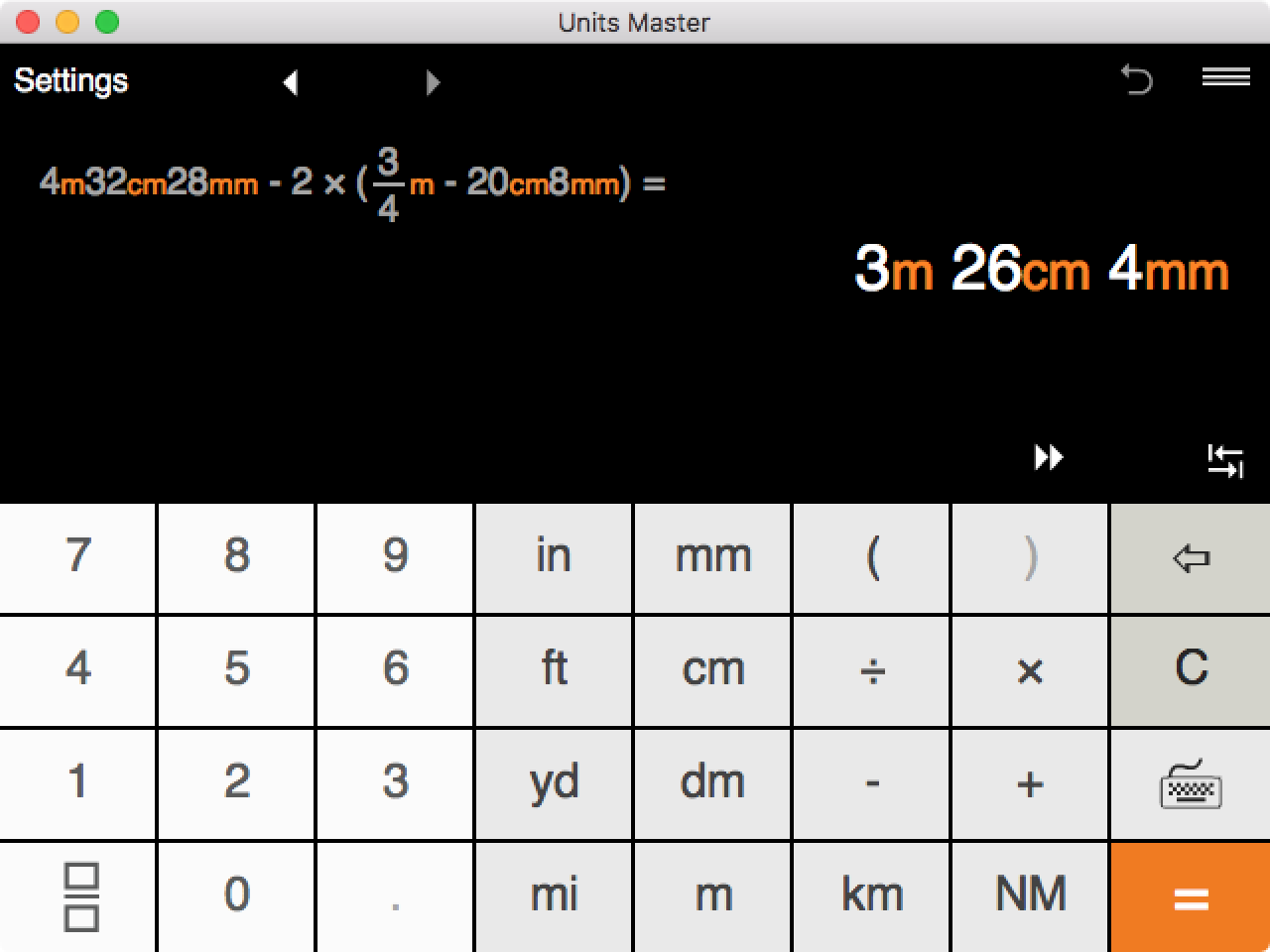
2. With Units Master you may enter dimensional values in any order.
It does not matter if you enter the larger or the smaller dimension first, the app shows you the correct answer in both cases. For example, it does not matter if you enter feet before inches 2ft3in or inches before feet 3in2ft.
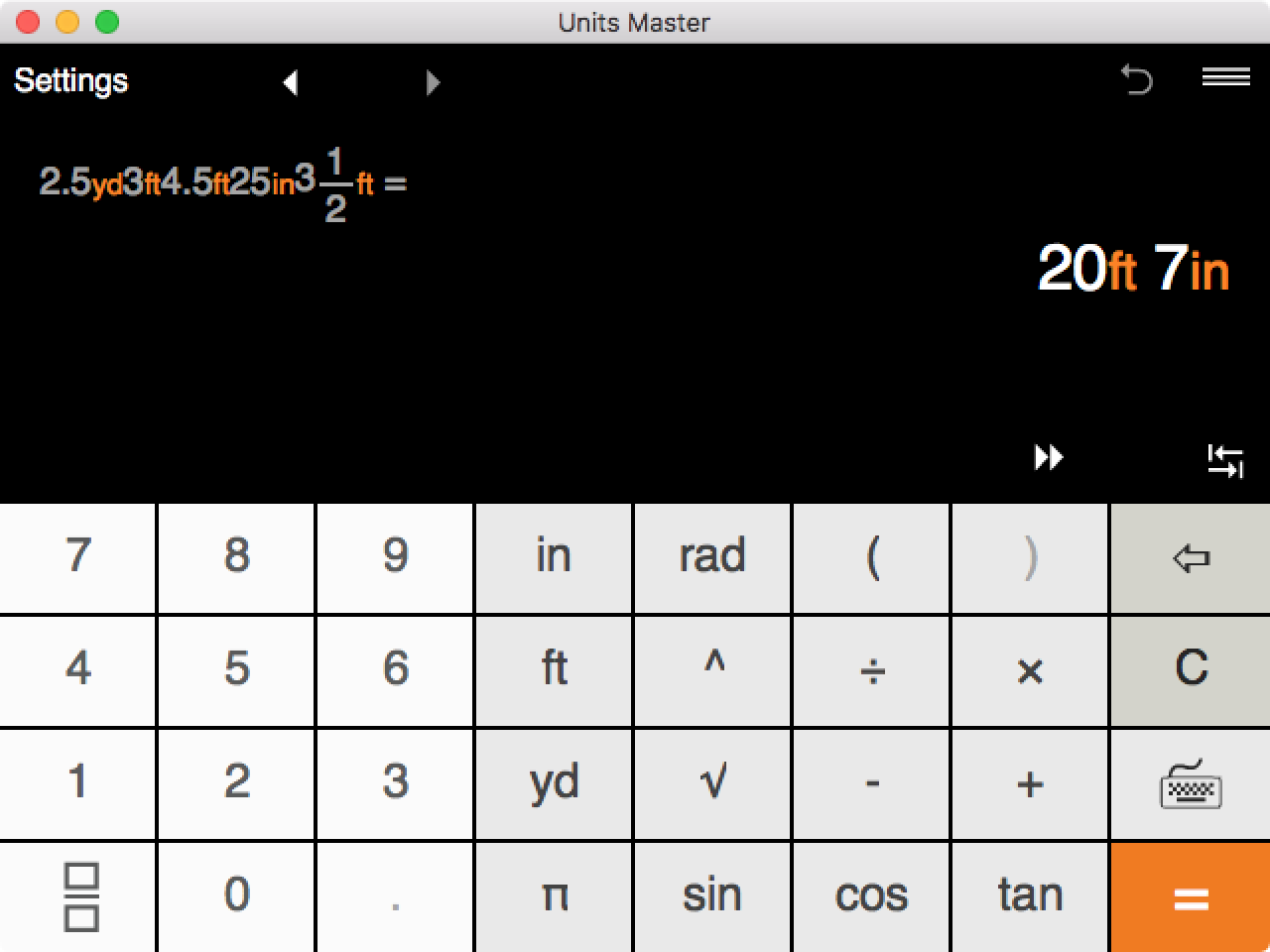
Tips: With Units Master you don't have to waste time by entering the addition operator (+) between units. Just enter the values one by one and press =.
2.5yd 3ft 4.5ft 25in 3_1/2ft = 2.5yd + 3ft + 4.5ft+ 25in + 3 1/2ft = 20ft7in
3. You may enter whole, decimal and fractional values for all imperial and metric units.
For example, you may enter 3.5ft, 5/8in, 3/4mi, 1 3/4 yd, 0.8km, 7/8m, 10.8cm, etc
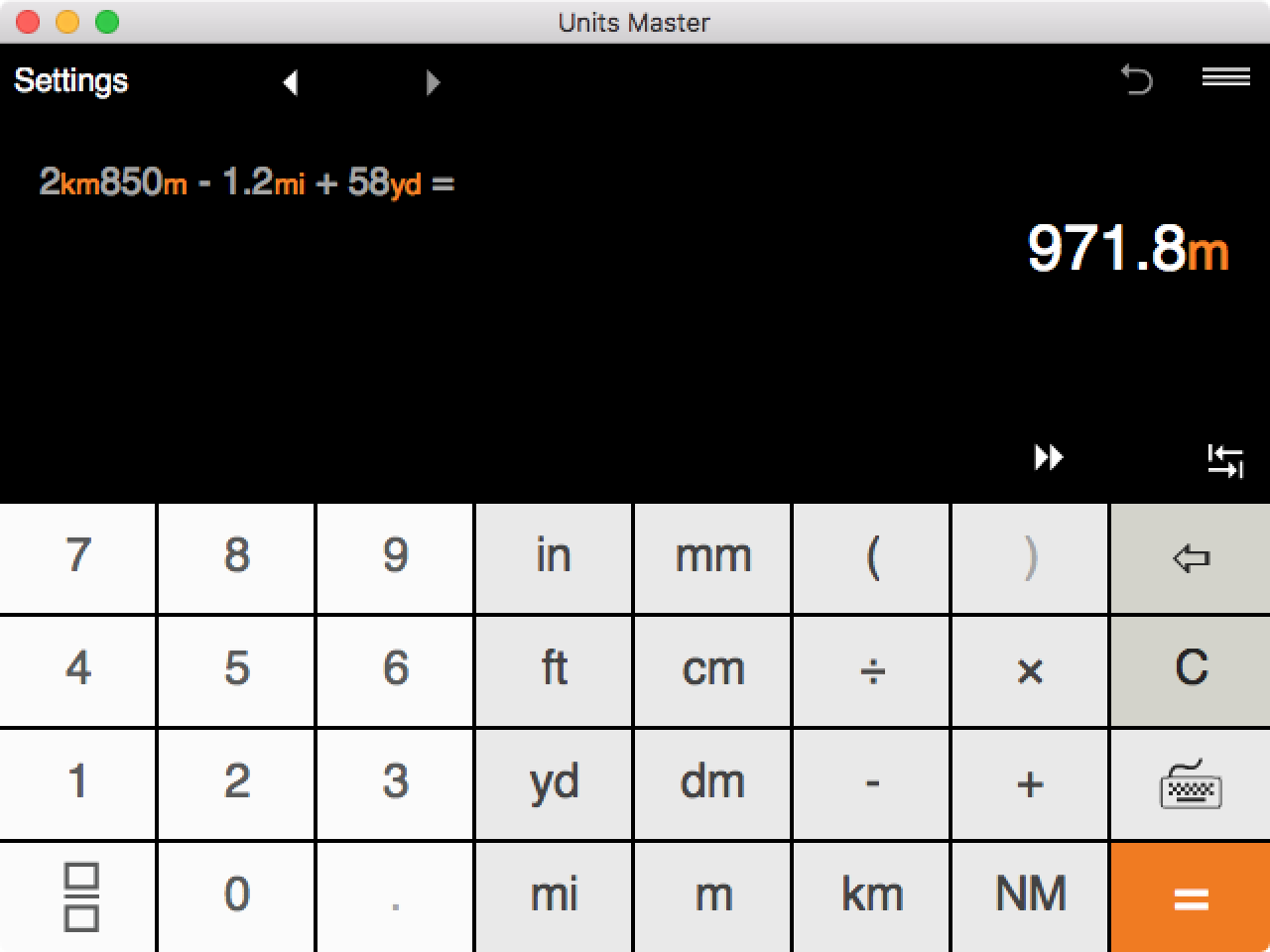
4. You may mix US and metric units in one equation.
Shortcuts/Hotkeys for Mac and Windows versions
| Shortcut/Hotkey |
Function |
| u |
switch between keyboards |
| \ |
open the fraction input window |
| Shift–Minus sign (-) |
open the fraction input window |
| tab |
move between input fields (for fraction input) |
| . or , |
input decimal point (does not work for fractions) |
Shift–Plus sign(+)
(Shift–Equal) |
addition |
| - |
subtraction |
Shift–8
(Shift–*) |
multiplication |
| / |
division |
Shift–6
(Shift–^) |
power "^" |
| Enter |
for fraction mode "Ok", otherwise calculate |
| () |
parentheses |
| Fn–Backspace |
delete the last input |
| Esc |
for fraction input closes the window, otherwise works as Clear 'C' |
| Fn–V |
sqrt √ |
| p |
π |
Shortcuts/Hotkeys for units input:
You may enter units only after numbers
|
| i |
inches |
| f |
feet |
| y |
yards |
| m |
miles |
| Alt–m |
mm (millimeters) |
| c |
cm (centimeters) |
| d |
dm (decimeters) |
| Alt–Shift–m |
m (meters) |
| k |
km (kilometers) |
Application button functions
In the application, after launching it, you will see the following buttons:
• The three-line button ≡ provides access to your calculation history, which displays your last 25 entries.
• The "<" and ">" buttons are used to move backward or forward through your most recent calculations.
• The curved arrow button returns the last expression deleted to the screen using the "Clear" ("C") button.
The "Switch Keyboard" button in the lower left corner of the application allows you to choose between three different input layouts.
Keyboard - Mode 1 (with American units of length, trigonometric functions, square root extraction and exponentiation).
Keyboard - Mode 2 (with all supported US and metric units of length).
Keyboard - Mode 3 (with all supported US and metric units of area).
• The "Fraction" button is used to enter fractions and mixed numbers. Fractions can be entered as proper fractions, such as 1/2, 3/8, or 5/32, or improper fractions, such as 3/2 or 5/4, or as mixed numbers.
After entering an expression with dimensional values and pressing the equal sign, additional buttons will appear on the screen:
• The "↹" ("Change Unit System") button is used when displaying the calculation result to quickly switch between the US and metric systems of units of measurement.
• The "
»" button ("Change units of measurement") allows you to get the result in all available combinations of units in the selected system of units in which the corresponding value is greater than 1.
Customise the output of results
Units Master provides advanced customization for the way you need to have the results. To tailor the app to your needs, click Settings in the top-left corner. The Settings window gives you all the freedom you need to show the output format.
Customization Options
Default Output Unit
The Length output unit and the Area output unit are specified independently of each other
You may choose if you want to see the results in US units or Metric units. In case you choose 'US' or 'Metric' units, you can also specify the desired unit. For more info see the
List of supported units
In case you select 'Auto' the results will be shown in the units of the expression. This output method is used by default.
Number of decimal places
This option allows you to specify on how many decimal places you want to round the result. Depending on you needs, you can choose from 0 to 8 decimal places. Choosing more decimal places increases the precision of the calculation result. In case of '0', the results will be shown as a whole number.
Round fraction to nearest
This option is very helpful, when the precision isn’t necessary and you prefer rounded and easier-to-work with values instead of exact fractions. You may choose to round the results to the nearest 1/2, 1/4, 1/8, 1/12, 1/16, 1/32, 1/64, 1/128, 1/256. In case, you do not need to round fractions, just select "-".
Output Format
As the app supports calculation with both fractions and decimals, you may choose how you want to see the result. Here you have four options:
'Fractions + Decimals' - no matter if you enter values as fractions or decimals, the result will be displayed in both formats.
'Fractions' - regardless of whether the expression uses fractions or decimals, the result is shown as a fraction.
'Decimals' - results are always displayed as decimals, even when fractions were used in an expression.
'Auto' - the output format follows the logic of what was used in the expression. If all values in the expression are fractions, the result is shown as a fraction. If the expression contains only decimals, the result is displayed as a decimal. If the expression contains both fractions and decimals, the result is displayed in a fractional form.
Feet and inches symbols
While users and industries have different preferences for how feet and inches are displayed - some prefer symbols ′ and ″, others prefer letters ft and in - this option gives you the choice to specify the display format for feet and inches.
Read this help section for key definitions, tips on how to enter data, use the History option, etc.

 EN
EN